
DashIOT Platform
Open ToolHigh-performance telemetry visualization and real-time MQTT monitoring. Connect brokers, configure widget JSON cards, and stream time-series sensor charts.
Welcome to the DashIOT Technical Documentation. DashIOT is a zero-backend, browser-native dashboard designed for embedded engineers, IoT developers, and operations teams to monitor and visualize live device telemetry in real time.
Quick Link: You can launch and test the application directly in your browser at Triophore IoT Dashboard.
Architecture & Overview
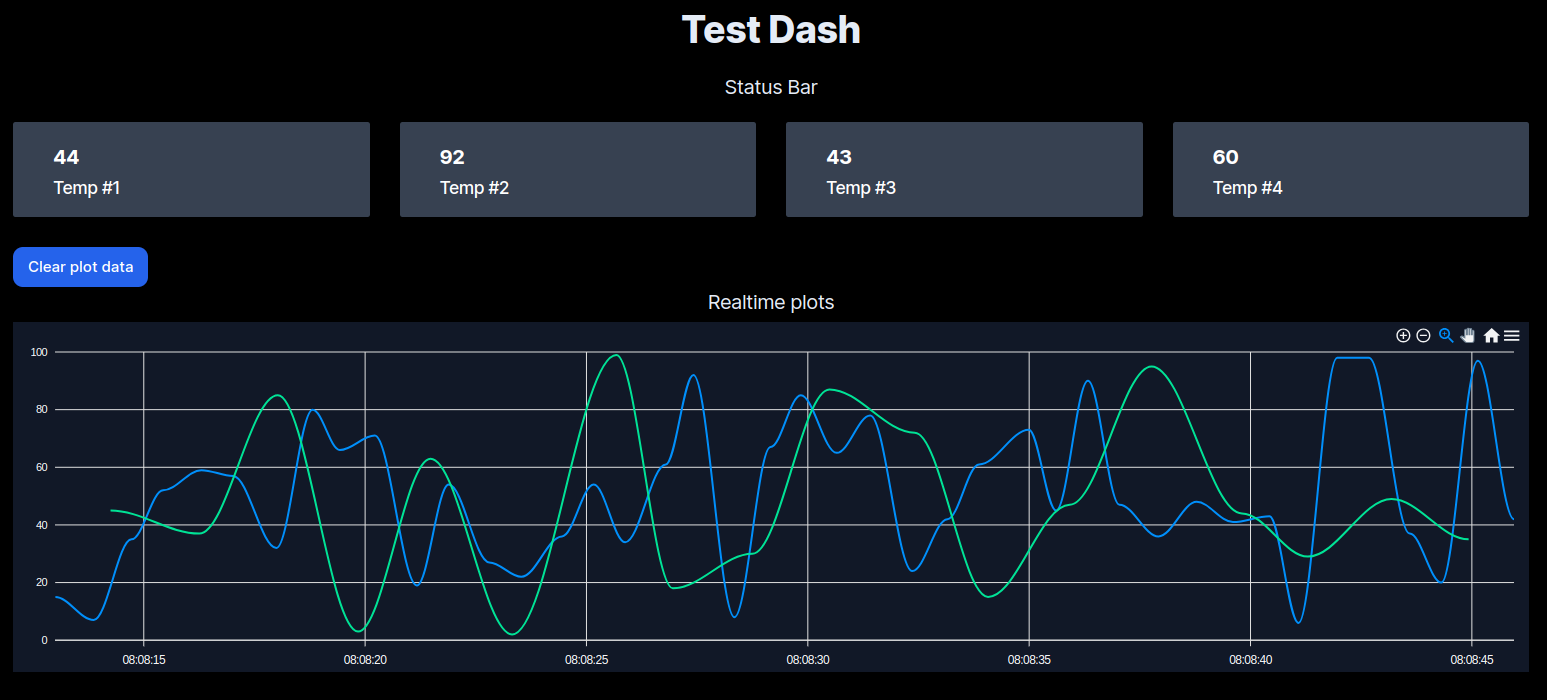
DashIOT connects directly from your web browser to any MQTT broker over WebSockets. Once connected, incoming MQTT topic payloads are dynamically parsed and dispatched into reactive dashboard widgets—including digital status readouts, telemetry metric cards, and time-series line charts.
Key Features
- Zero-Cloud Footprint: Runs 100% client-side in your browser. No middleman servers store or intercept your device telemetry.
- WebSocket Native: Connects directly to secure
wss://and standardws://endpoints. - Dynamic JSON Schema: Define widgets, cards, labels, and MQTT subscription topics through an intuitive declarative JSON layout.
- Live Time-Series Plotting: High-performance SVG/Canvas charts rendered with local browser timestamps.
- Integrated Logging: Real-time console showing subscribed topics, raw packet payloads, and connection state.
5-Step Rapid Setup
To begin visualizing telemetry in DashIOT, follow this workflow:
- Broker Preparation: Ensure your MQTT broker has WebSocket support enabled on a reachable port (typically port
8083,8084, or9001). - Define UI Config: Author your UI JSON specifying metric cards and chart topics (or use our built-in template).
- Establish Connection: Open the connection drawer, input your broker URL, client credentials, and click Connect.
- Deploy Layout: Paste your JSON schema into the configuration editor and click Run Config.
- Monitor Telemetry: Observe live widget updates and inspect packet arrival in the live log.
Connecting to the MQTT Broker
Connecting DashIOT to an MQTT broker is straightforward and requires zero local software installation.

Connection Parameters
- Broker Host (Required): Full WebSocket URL for your broker, formatted as
wss://broker.example.com:8084/mqttorws://192.168.1.50:9001. - Username & Password (Optional): If your broker requires authentication, supply valid credentials.
- Client ID (Optional): Provide a specific client identifier or leave blank to auto-generate a unique random ID.
- Terms Checkbox: Acknowledge testing terms and click Connect.
WebSocket Protocol Notice: The broker must support MQTT over WebSockets. Standard TCP ports (such as
1883or8883) cannot be opened directly by web browsers due to browser sandbox security constraints.
For a curated list of public testing brokers and self-hosted options, see the MQTT Broker Setup Guide.
Configuring UI with JSON Schema
DashIOT widgets are declared using a lightweight JSON schema. The schema dictates the dashboard title, parent namespace topic, metric cards, and real-time chart subscriptions.

Basic JSON Schema Structure
{
  "title": "Industrial Gateway Telemetry",
  "topic": "factory/line1/gateway01",
  "set0": {
    "label": "Ambient Temp (°C)",
    "default": "24.5",
    "topic": "/temperature"
  },
  "set1": {
    "label": "Humidity (%RH)",
    "default": "48.2",
    "topic": "/humidity"
  },
  "set2": {
    "label": "Bus Voltage (V)",
    "default": "24.0",
    "topic": "/voltage"
  },
  "set3": {
    "label": "Motor RPM",
    "default": "1420",
    "topic": "/rpm"
  },
  "chart0": {
    "label": "Temperature Sensor",
    "topic": "/temperature"
  },
  "chart1": {
    "label": "Humidity Sensor",
    "topic": "/humidity"
  }
}
Widget Types & Properties
Status Set Cards (set0 to set3)
Status set cards are high-contrast telemetry readout blocks ideal for scalar values, sensor gauges, and state flags. A dashboard can display up to 4 cards simultaneously:
label(Required): String displayed underneath the numeric value.topic(Required): Relative sub-topic or absolute MQTT topic carrying the value.default(Optional): Placeholder value shown prior to receiving the first live packet.
Realtime Charts (chart0 and chart1)
The realtime chart widget plots streaming numerical data against a sliding time axis:
label(Optional): Legend name for the data series.topic(Required): MQTT topic transmitting numeric telemetry.- X-Axis: Automatically computed using local browser timestamps upon packet arrival.
- Buffer: Rolling window of recent samples with automatic Y-axis autoscaling.
Diagnostics & Packet Logging
DashIOT features an embedded real-time event log for diagnosing network drops, invalid JSON payloads, or unmapped MQTT topics.

Logs display timestamps, message status levels (INFO, WARN, ERROR), subscription confirmations, and raw payload dumps. Use the Clear Logs button to purge the buffer during high-frequency telemetry sessions.
Next Steps
Explore the following chapters to configure your deployment:
- Connect to MQTT Brokers — Broker compatibility, ports, and testing endpoints.
- UI & JSON Configuration — Advanced schema options, topic wildcards, and widget syntax.
- Terms & Safety Guidelines — Usage guidelines and non-production testing disclaimer.